
















Real City Driving 2 Full Guide: How to Play, Pro Tips & FAQ (2025)
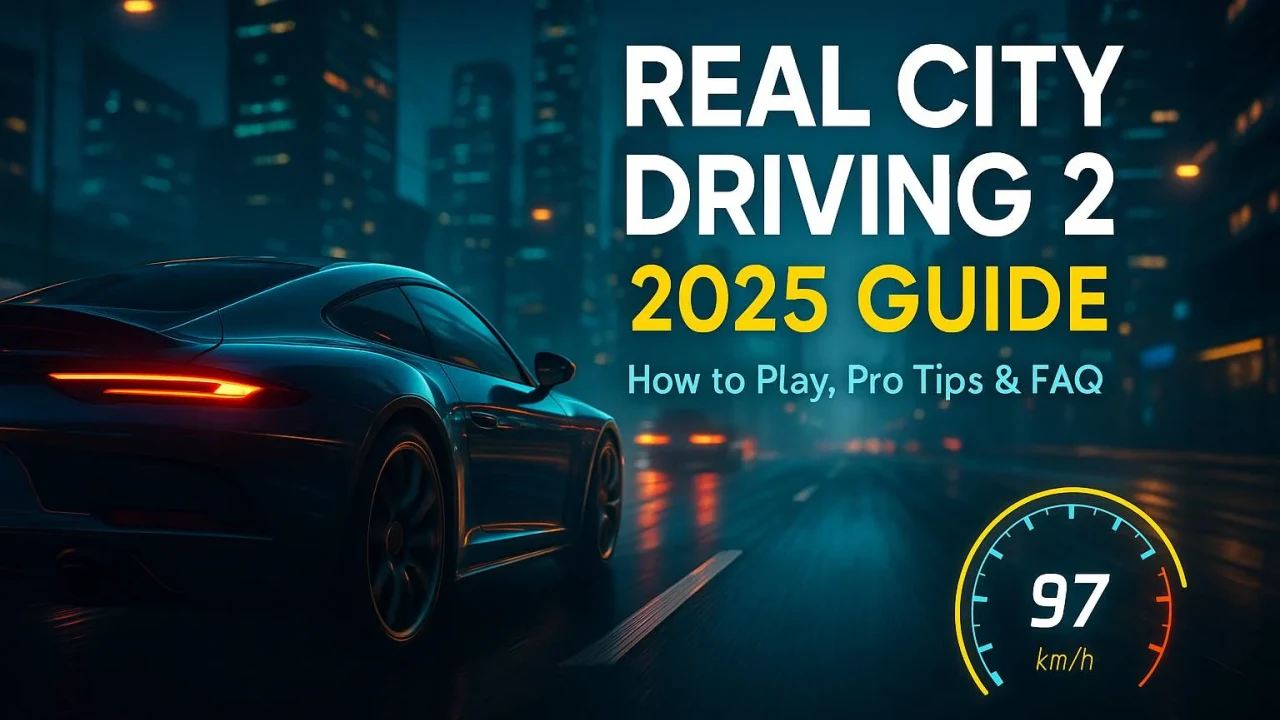
If you crave the feel of rubber on asphalt, sunlit boulevards, and the freedom to choose your own route without a finish line barking at you, Real City Driving 2 is your lane. It’s a pick-up-and-drive browser title that focuses on clean car control, believable physics, and a modern city map packed with ramps, tunnels, multi-lane avenues, and tight backstreets. Whether you’re a keyboard driver learning smooth inputs or a gamepad purist dialing in analog steering, Real City Driving 2 rewards finesse, patience, and curiosity.
In this expanded guide you’ll find everything you need to get the most from real city driving 2—how to launch and configure the game, a step-by-step practice routine, cornering and braking fundamentals, camera and control setups, frame-rate tuning, and a deep FAQ. You’ll be ready to cruise, stunt, and master city traffic like a pro.
👉 Drive now: Real City Driving 2
About Real City Driving 2
Real City Driving 2 is a free-to-play browser driving experience built around open-ended exploration and skill building. Instead of formal racing series or long career menus, you get a realistic-feeling city playground: long expressways for top-speed runs, sweeping on-ramps to practice smooth arcs, and inner-city streets for low-speed precision, parking, and U-turns. It’s part of the broader family of driving simulators, games designed to emphasize vehicle dynamics, control, and road awareness rather than arcade shortcuts. For background on this style of gameplay, see Wikipedia’s entry on the driving simulator.
Why players love real city driving 2
-
Instant access: It loads in your browser. No installers, no barriers.
-
Skill-first gameplay: Learn real road habits—planning lines, braking properly, and reading traffic.
-
Open exploration: Cruise at your pace, scout stunt spots, and set your own challenges.
-
Flexible controls: Keyboard works great; many browser builds also read gamepads.
-
Relaxing loop: It’s easy to zone out and enjoy the city, or to push your technique and chase perfect runs.
Ready to try it? 👉
How to Play Real City Driving 2 (Step-by-Step)
This section gets you from first click to confident city driver in a structured way.
1) Launch & basic setup
-
Open:
-
On the title screen, look for Settings (gear icon):
-
Graphics: Start on Medium. Raise if FPS is smooth, lower if stuttering.
-
Resolution: Use your native display resolution; drop one step if you need extra frames.
-
Audio: Keep engine SFX on—rev and tire noise are valuable feedback.
-
Controls: Confirm your preferred input (keyboard/gamepad) and invert axes only if it feels natural for you.
-
Why settings matter: Stable frame rate makes steering more predictable, which directly improves your consistency.
2) Controls you’ll use 99% of the time
(Exact bindings can vary slightly. These are the common defaults across browser builds.)
-
W / Up – Throttle
-
S / Down – Brake / Reverse
-
A / D – Steer left/right
-
Space – Handbrake (tight rotation; use sparingly)
-
C – Cycle camera views (hood/bumper/chase)
-
R – Reset or upright vehicle (when wedged or flipped)
If you’re on a gamepad, map RT = throttle, LT = brake, Left Stick = steer, A/X = handbrake, Y = camera.
3) HUD & what it means
-
Speedometer / Tachometer: Use RPM to time upshifts (if manual shifting is available in your build).
-
Damage / Stability indicator (if shown): Back off after heavy impacts; a wobbly car teaches bad habits.
-
Checkpoint/marker prompts (in challenge modes): Follow them for time trials or precision tasks; otherwise explore freely.
4) First 10-minute practice plan (your “day 1”)
-
City loop (3 min): Cruise slowly. Learn lane widths, curb heights, and turning radii.
-
Braking drill (3 min): Pick a lamppost as a marker. Accelerate to ~80 km/h, brake to 0 at the same point. Repeat, moving the marker 5 m later each time until you barely stop in time.
-
Cornering line (2 min): On a wide right-hander, trace an outside → apex → outside path at a steady speed. No brakes mid-corner.
-
Emergency stop & swerve (2 min): From ~60 km/h, stomp brake, then release slightly to steer around an imagined obstacle, then reapply. Feel the front tires re-grip.
Do this once and you’ll already feel smoother.
5) Modes & city activities
-
Free Drive: The core experience—choose your pace, route, and personal challenges.
-
Time or Checkpoint Runs (if available): Great for learning consistent acceleration/braking points.
-
Parking & Precision (if present): Low-speed clutch/brake finesse and steering discipline.
-
Stunt/Exploration: Ramps, bridges, and construction zones let you test weight transfer and landings.
6) Cameras: pick the one that helps you drive
-
Hood/Bumper Cam: Best for judging distances and learning smooth inputs.
-
Chase Cam: Great for sightseeing and stunts, but can exaggerate steering.
-
Cockpit (if available): Superb immersion; be sure your FOV gives you side-mirror awareness.
Pro tip: Practice fundamentals in hood/bumper cam; swap to chase cam once muscle memory is set.
7) Manual vs automatic (when available)
-
Automatic: Perfect while learning lines and braking.
-
Manual (sequential): Adds control. Short-shift to reduce rear slip on exits; downshift early to use engine braking before a corner.
8) Traffic etiquette (if the build has AI cars)
-
Read brake lights: Anticipate stops; don’t react at the last second.
-
Blind corners: Cover the brake; enter at a speed you can stop within your visible distance.
-
Lane discipline: Pick a lane and hold it; weaving makes surprise collisions more likely.
Driving Fundamentals That Actually Make You Better
Braking: where lap time really lives
-
Brake in a straight line: Turn only after you’ve shed speed.
-
Trail brake (light): Keep 5–10% brake as you start turn-in to load the front tires; release smoothly by the apex.
-
Markers: Use fixed objects (signs, manholes) as braking references; move them slightly later as you improve.
Cornering: “slow in, fast out”
-
Approach on the outside.
-
Turn once toward the apex—avoid zig-zags.
-
Throttle gently at apex, then add more as the wheel straightens.
-
Use all the exit space—let the car drift to the outside curb if available.
Throttle: progressive, not binary
-
Feather to maintain balance: Big jabs mid-corner push the front wide (understeer).
-
Short-shift if you’re spinning: Higher gear = gentler torque = more grip.
Handbrake: spice, not sauce
-
Tap only for hairpins or parking challenges. Overusing it trains instability and lengthens stopping.
Weight transfer: your invisible teammate
-
Brake = weight forward = more front grip (easier turn-in).
-
Accelerate = weight rearward = more rear grip (stable exits).
-
Coordinate pedal inputs with steering to “place” grip where you need it.
30 Practical Tips & Tricks for Winning at Real City Driving 2
-
Master one corner at a time. Don’t try to perfect the whole city in one session.
-
Turn once. Multiple mid-corner corrections add distance and scrub speed.
-
“If it understeers, you’re too fast.” Back entry speed by 5 km/h and your exits will be faster.
-
Look where you want to go. Your hands will follow your eyes.
-
Smooth steering = smooth tires. Jabby inputs break grip.
-
Use hood cam to fix over-steer inputs. Chase cam often makes you turn more than needed.
-
Pick braking markers. Consistency beats bravado.
-
Never brake mid-corner unless you planned it. Sudden weight shift unsettles the car.
-
Short-shift on corner exits to keep the rear planted.
-
Coast for 0.3 seconds before turning if you’re on the edge of grip; it reloads the tires.
-
Reset the car after heavy hits. Driving a bent chassis teaches the wrong feel.
-
FPS first. Lower graphics before you accept input lag.
-
Plan your route. Long, gentle corners are better for line practice than 90° city turns.
-
If the rear steps out, counter-steer small and early. Waiting turns a wiggle into a spin.
-
Brake early on hills. Downhill corners arrive faster than you think.
-
Use the whole lane at exits. Don’t strangle the car by hugging the curb.
-
Handbrake only for hairpins. If you need it elsewhere, your entry was too hot.
-
Separate steer and brake. Heavy simultaneous inputs overload the front tires.
-
Two mistakes in a row? Pull over, breathe, reset your rhythm.
-
Practice emergency stops weekly. It’s real-life valuable and improves pedal control.
-
Mirror checks before lane changes. Even in a game, build good habits.
-
Drive in rain/night (if the build has it). Reduced visibility forces smoother inputs.
-
Map reset to something easy. Don’t spend time wriggling off curbs.
-
Don’t chase top speed everywhere. The city rewards rhythm, not recklessness.
-
Set mini-goals: clean lap of the ring road, no-brake slalom through cones, zero-damage commute.
-
Re-run the same loop for 10 minutes. Muscle memory needs repetition.
-
Mark progress: Screenshot your speed at a known point; beat it later with cleaner exits.
-
Try manual once you’re comfy. Engine braking and gear choice refine your control.
-
Use audio cues: Tire squeal means you’re at the limit—hold, don’t add more input.
-
Quit on a clean run. Ending on success cements good habits.
Why Real City Driving 2 Is a Perfect Browser Game
-
Zero friction: Click and drive—ideal for short breaks or long chill sessions.
-
Believable physics: Teaches transferable driving instincts (lines, braking, vision).
-
Open-world feel: You decide the challenge—speed runs, parking finesse, or scenic cruises.
-
Scales to your hardware: Graphics options keep input responsive.
-
Kid-to-pro friendly: Beginners can tour; veterans can grind clean technique.
-
No grind walls: Progress is measured in skill, not loot.
Curious? Start cruising here:
FAQ — Real City Driving 2
1) Is real city driving 2 free to play?
Yes. It runs in your browser at no cost: play here.
2) Does it support controllers?
Many browser builds read gamepads. If yours doesn’t, keyboard steering with smaller taps works great.
3) What camera is best for learning?
Hood/bumper cam. It improves depth judgment and naturally reduces over-steer inputs.
4) Can I play on mobile?
Most modern mobile browsers can load it, though desktop offers the smoothest control.
5) Are there races or missions?
The focus is free driving and skill practice. Some versions include checkpoints, parking, or time trials; treat them as optional training tools.
6) How do I stop constant understeer?
Brake a touch earlier, reduce speed at turn-in, and add throttle only as the wheel straightens. Short-shift if exits spin the front wide.
7) Is manual shifting worth it?
If available, yes. Manual gives finer control over weight transfer: downshift early for engine braking, upshift early for stable exits.
8) The frame rate dips in busy areas—what should I change first?
Lower shadows and reflections, then resolution if needed. Smooth inputs beat pretty pixels for driving.
9) Any quick drill to improve in 5 minutes?
Pick one corner. Do 10 passes focusing only on braking point and a single, clean turn-in. Stop when you nail it.
10) How do I make the most of free drive?
Set micro-challenges: clean loop without touching brakes, no-damage commute at traffic speed, or a consistent 80→0 stop at the same marker every time.
Final Lap
Real City Driving 2 is the rare browser game that makes you tangibly better behind a virtual wheel. It’s not about flashy nitro bars or rubber-band AI—it’s about clean lines, planned braking, and confident exits. Start with stable frame rate and hood cam, pick a small loop, and work on one habit at a time. Within a single session you’ll feel it: calmer inputs, shorter stopping distances, and corners that flow instead of fight.
When you’re ready to put rubber to road, fire it up:
👉 Drive Real Creal city driving 2e="">real city driving 2